Sales Orders With Returns
| Document Version | V.1 |
|---|---|
| Document Last Updated | 8/28/2025 |
| Software Version Documented | V10.2 |
Contents
Positive Order Grand Total - Cash Order 7
Overview
In this document, the concepts and processes of having a negative/return on a sales order. You will be able to transact a sale, and a return in the same order. As well as add multiple invoices to return in the same order.
Terms:
-
Negative On an Order: Refers to processing a return on an order, having negative qty line items, as well as positive qty line items.
-
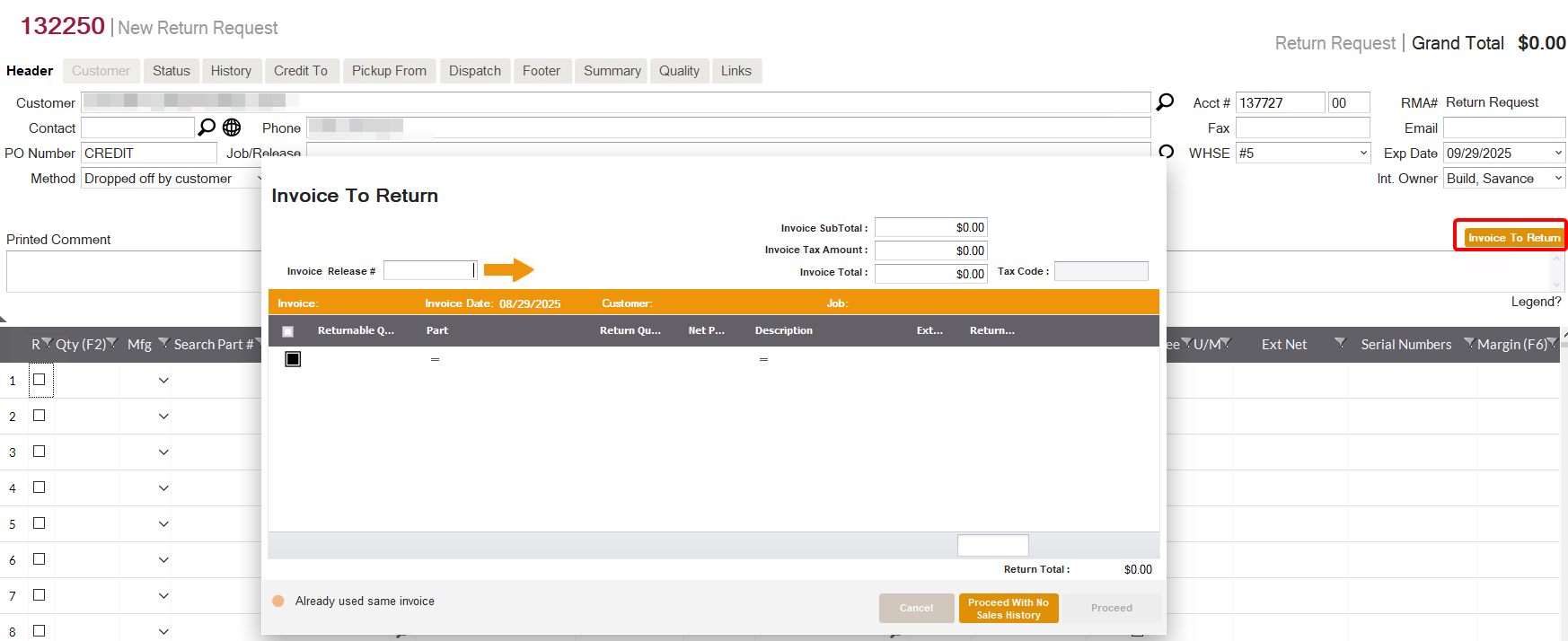
Invoice to Return Screen: A new button on Quotes/Orders and Customer Returns/RMAs where you can select a specific invoice to return.
-
Invoice First: Clicking the Invoice to Return screen before adding items, and entering the Invoice Release #, and choosing the line item/s and qty to return. Then the system will add the line items as negative on the form.
-
Item First: On a Quote, entering an item then making the qty negative, the Invoice to Return screen will appear with a list of invoices to choose from to return.
- The same applies to Customer Return/RMA, but the qty will be positive.
-
Assumptions:
-
Returns/Negative line items cannot be conducted in the same order as the original sale. The return must be on a new Order, New RMA, or existing, different order or RMA.
-
The following instructions assume the Order is a Cash Order. However, Returns can still be processed on orders that are not cash orders.
-
Returns can NOT be processed on Direct Orders.
General Concepts
Returns On an Order
-
Given that a customer wants to start a new sales order but also has returns to make, you will start a new quote.
-
You can add the positive line items first if you wish.
-
Then you will click the Invoice to Return button on the right side of the screen.
Invoice First Mode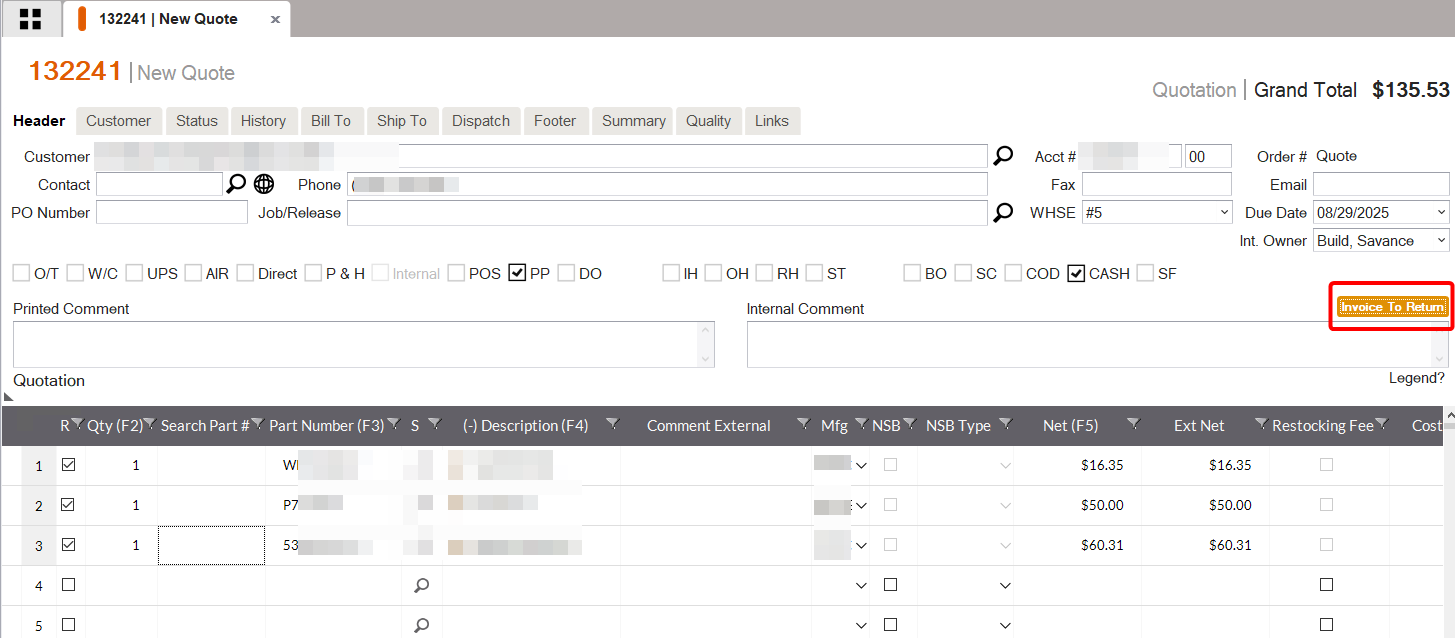
-
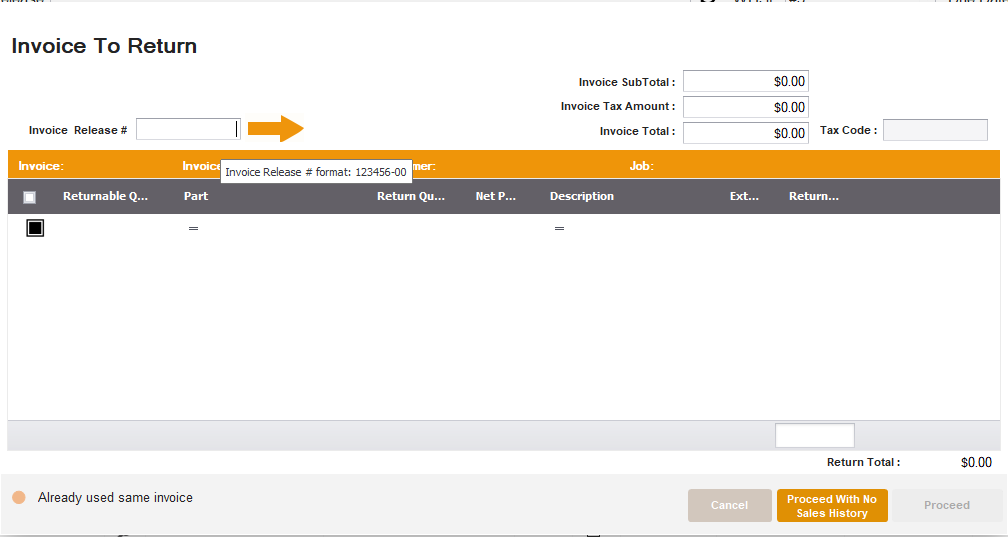
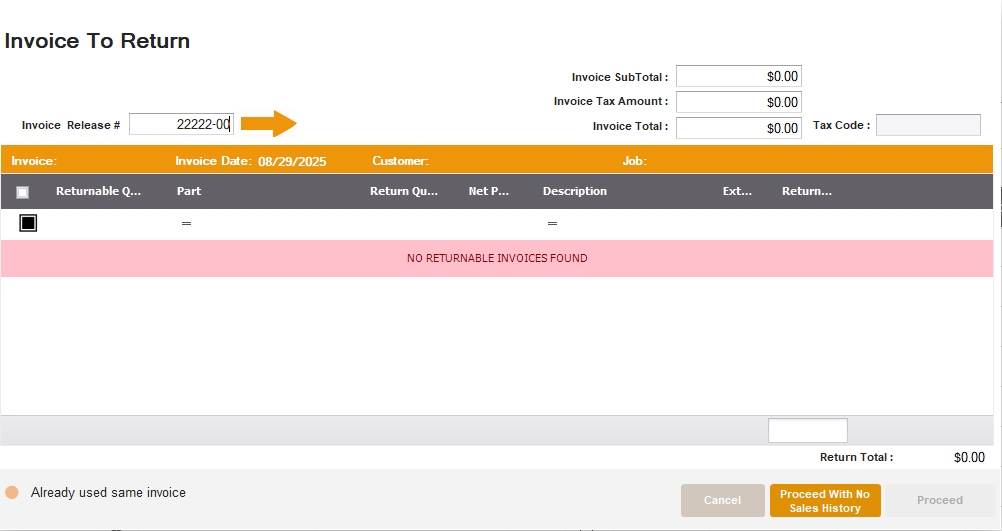
The Invoice to Return, in invoice first mode, appears.
-
Enter the Invoice Release Number (ex, 123456-00, including the -00) and tap Enter or click the orange arrow.
-
The invoice data will appear in the grid below.
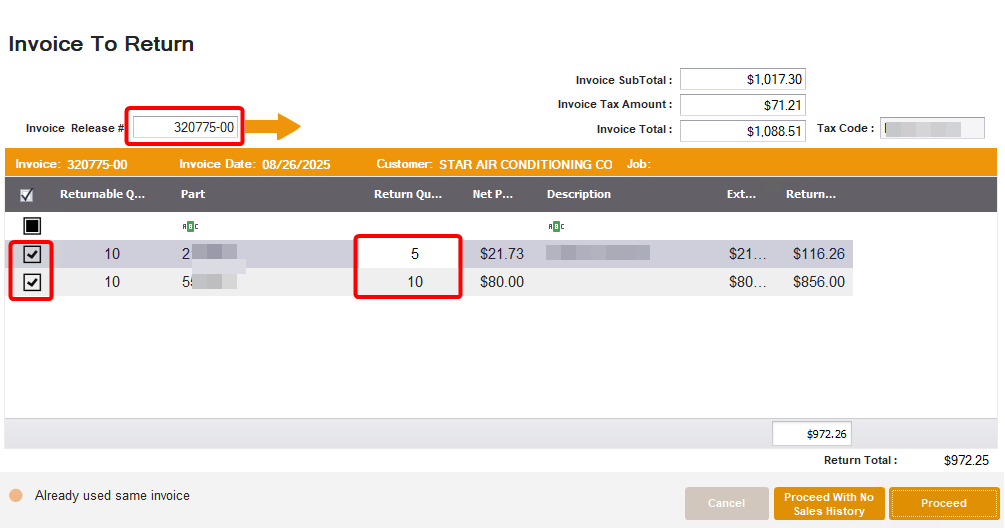
- Notice the Invoice Date, Job, Tax Code, invoice and tax amounts .
-
Check off the line item/s you wish to return.
-
The Qty to Return will default to the Returnable qty (Order Qty minus the qty already returned).
-
You can edit the Qty to Return if they are partially returning the line item.
-
Notice the Return Amount as you select the line items and qty/s.
-
When ready, click Proceed
-
And the line items and the return qty will be added to the quote grid as negative qtys
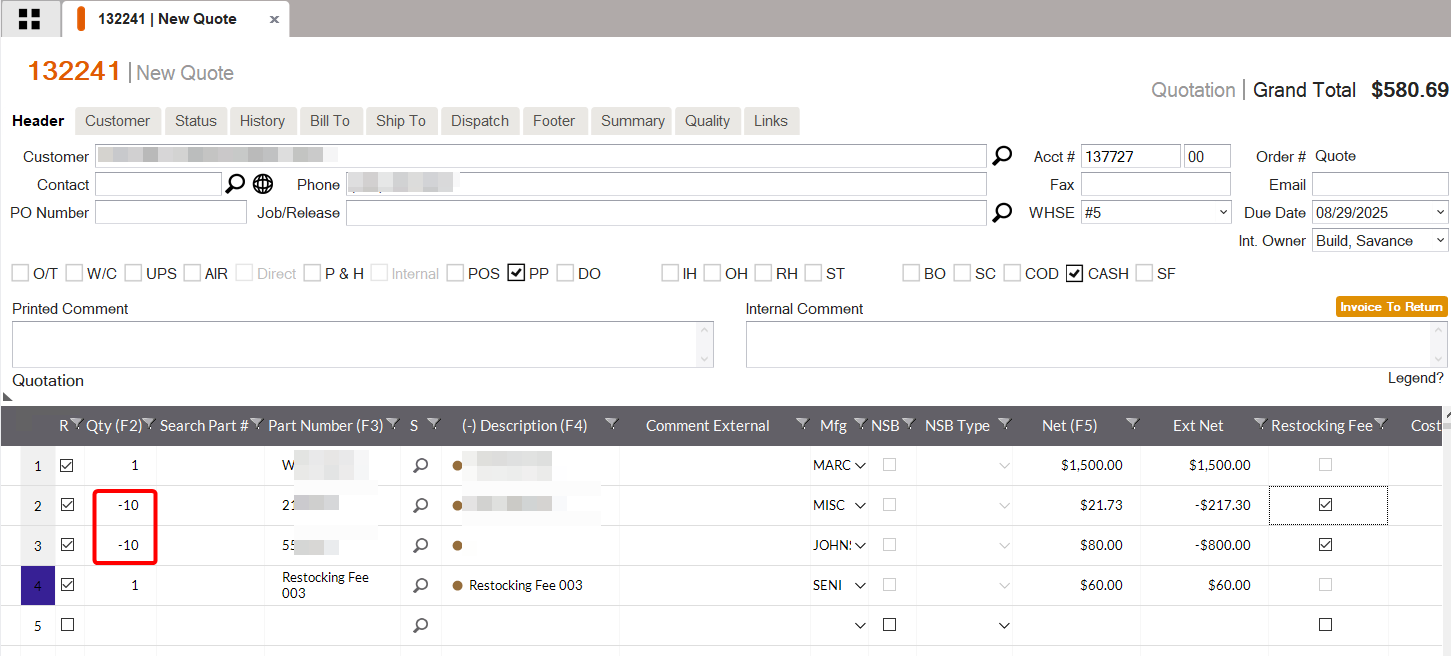
- If you have a default Restocking Fee setup, that will be added below the return line/s.
-
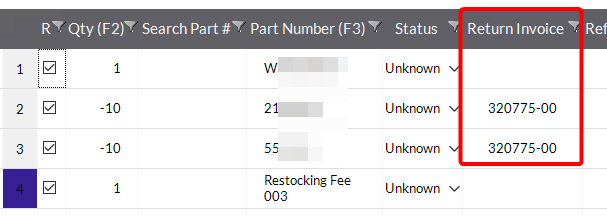
If you scroll over to find the Return Invoice column, the Invoice selected to return will appear.
-
Notice the Order Grand total
-
If you decide to change the qty to return, simply change the qty (negative).
-
You can click the Invoice to Return button again to look up another invoice to return.
-
Or you can enter line items and make them negative
Item First Mode
-
Enter a part # then making the qty to return as a negative value
-
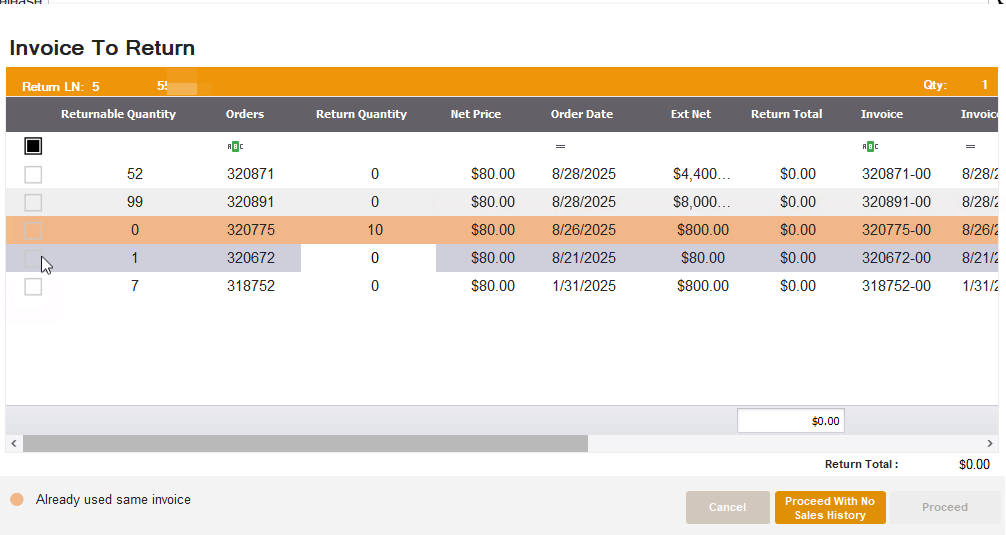
Upon clicking away or pressing tab, the Invoice to Return screen in item first mode will appear
-
The grid will show all invoices that that item is in.
-
You can scroll to see the other invoice or tax data
-
If you have already added an invoice with this item to the return/quote, the invoice will appear in Orange.
-
Returnable Qty = Order Qty - Qty Already Returned
-
-
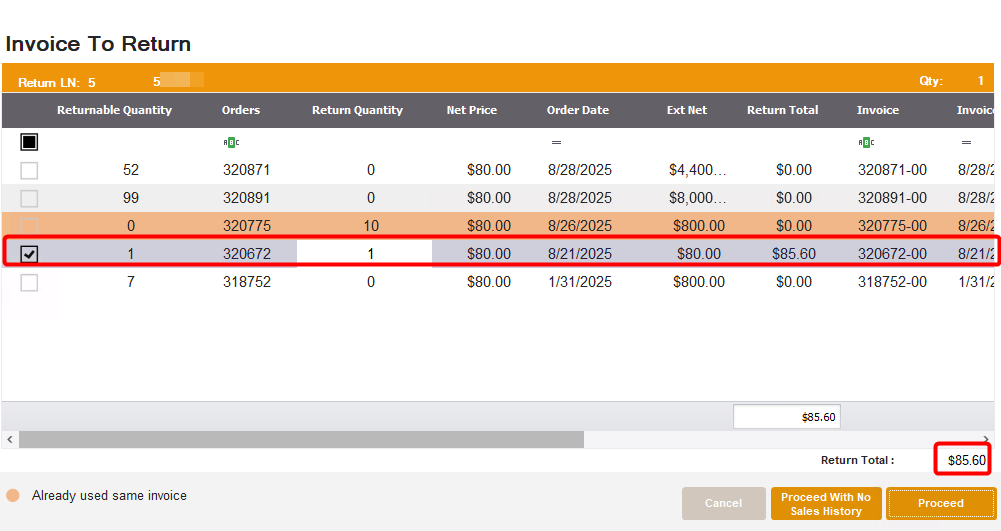
Checkmark the invoice you want to return
-
Notice the Return Total refreshes as you check the invoice/s
-
You can select multiple invoices if there are any, and enter the appropriate qty per invoice in the Return Qty column
-
When ready, click Proceed.
-
And the Invoice # will be added to the negative line item you just entered.
-
Add as many invoices to return as needed
-
Add as many other positive line items as needed, if any
-
Upon Converting, the system will do the normal converting processes.
-
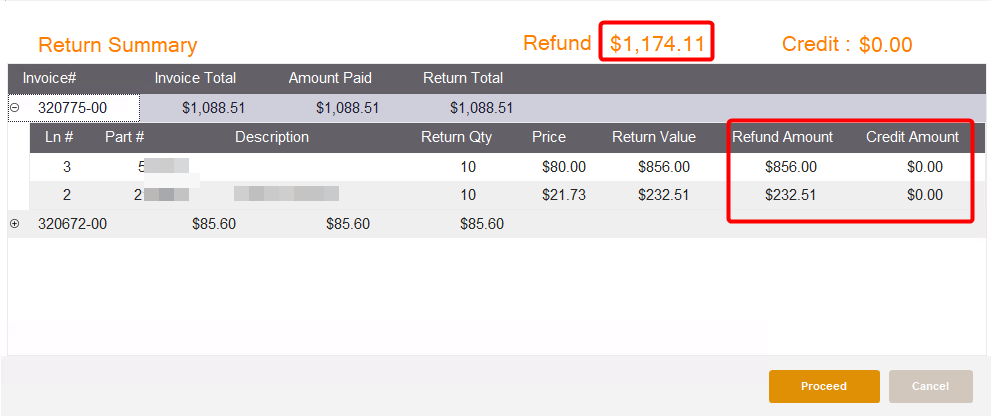
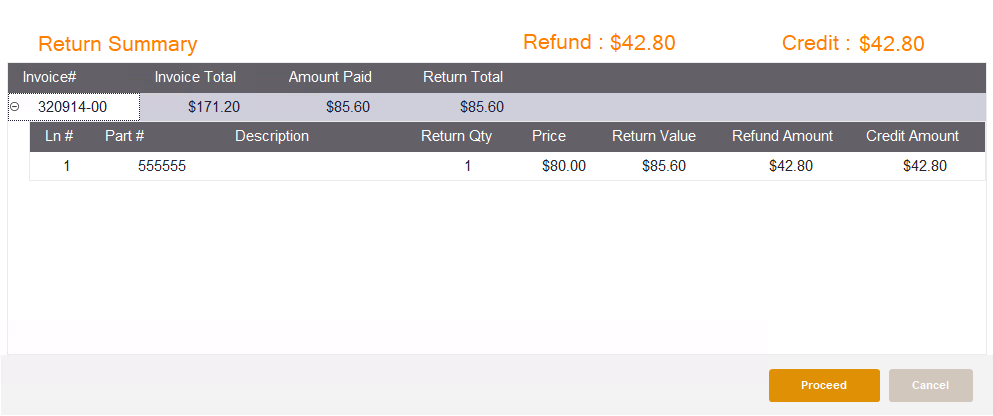
Then the Return Summary screen will appear, listing the invoice/s being returned
-
If the return is for a paid or partially paid invoice, there will be a dollar amount in the Refund section
-
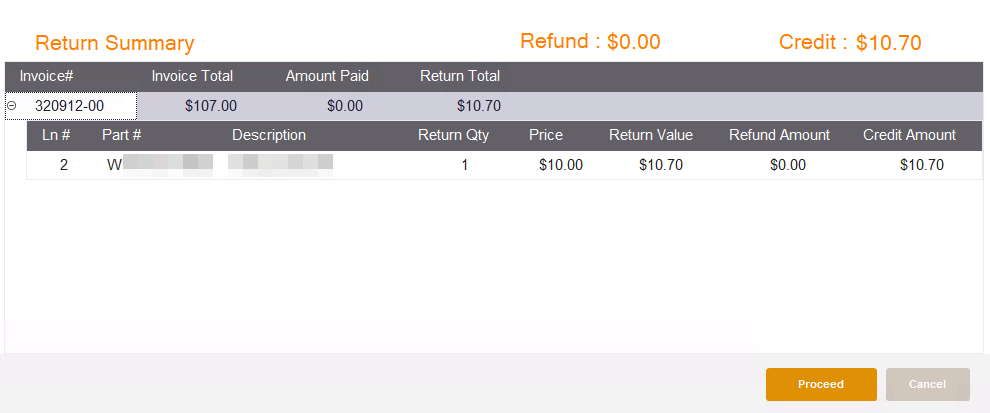
Unpaid invoices or partially paid invoices will receive a Credit (if partial, refund and credit)
-
The Credit will be applied to the invoice being returned.
-
-
You can also expand the invoice line/s to view the line details and amounts including what amounts are refunds or credits.
-
When ready, click Proceed
- If you see an error or need to change something, you can click Cancel and the Converting process will stop and you can edit the Quote further.
Positive Order Grand Total - Cash Order
-
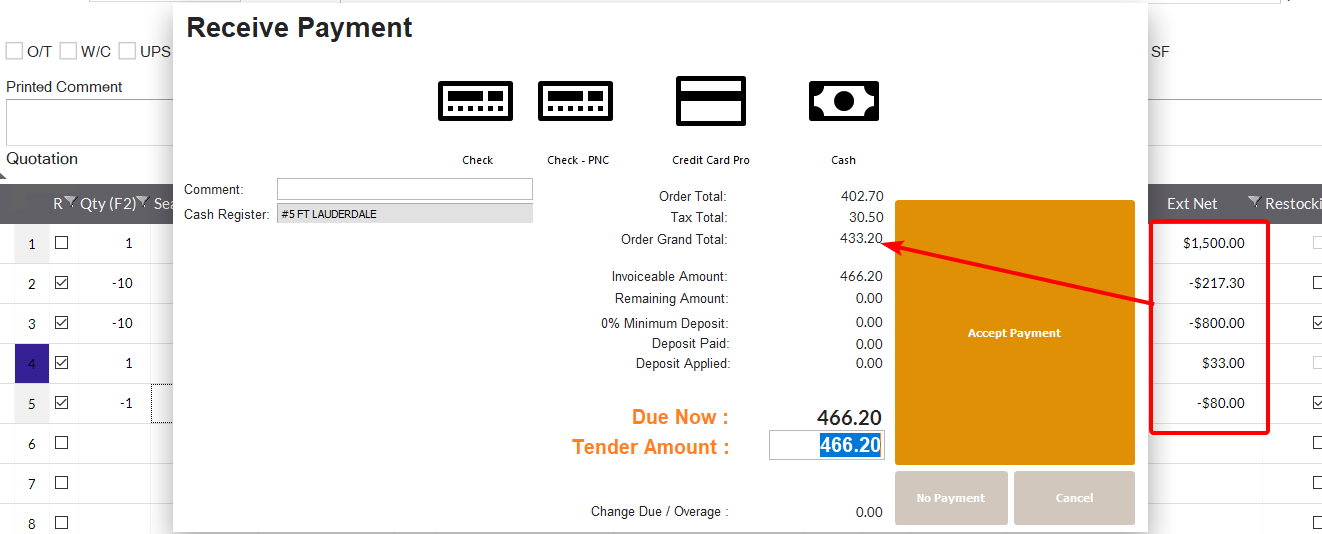
If the Order Total is Positive, and it is a Cash Order, the Receive money screen will appear
-
Notice the grand total includes the amounts of the positive and negative line items (including a restocking fee in this example).
-
This example shows the return amounts were all refunded, thus affecting how much owed on this transaction.
-
Accept the payment like normal and complete the transaction.
Paid Invoices
- When an invoice has already been paid for, the return will result in a refund. The refund amount will reduce the Order Grand Total.
Unpaid Invoices
-
When an invoice that has not been paid for the return will result in a Credit. The credit will be applied to the returned invoice.
-
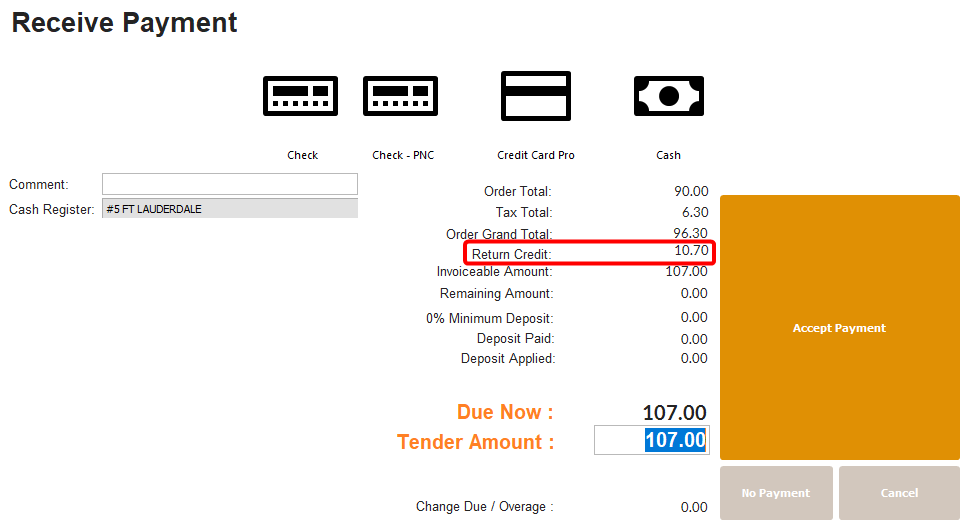
The Receive Money screen will show the Return Credit amount being added back to the Order Grand Total since this credit is not affecting this transaction.
-
You can view the Credit Applied when you pull up the invoice that was returned.
-
Once the Order is Converted, Notice the Status Tab shows a Shipper (given that there are positive items), indicated with “S” and a Return Receiver, indicated with “R”. The return receiver will already be received and credited.
- This example shows the positive line item has also already been shipped and invoiced in the transaction.
Partially Paid Invoices 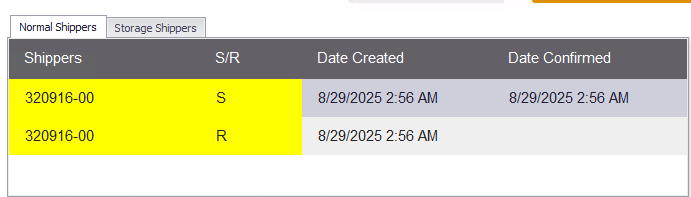
-
If an invoice being returned is partially paid, it will result in a refund as well as a credit.
-
The breakdown of the refund vs credit will be the percentage of the invoice paid compared to the value of the return.
-
Example, if 50% of the invoice is paid, and a return is processed, the refund will be 50% of the return value, and the rest will be a credit to the original invoice.
-
Negative Order Grand Total
-
If the order grand total results in a negative amount, given that the invoices to return are paid, converting the order will result in a Refund and/or Credit (depending on paid, unpaid, or partially paid).
-
It is possible to create an order that only has returns on it. It is an additional way other than an RMA to process a return.
- The recommended scenario for using a quote/ order like this is when the customer has already brought the item back physically ready to return.
Returning with No Sales History
-
It is possible to process a return with no invoice if you have the Security Object called “Return With No Sales History” under Order Actions.
-
Invoice to Return Screen with No Sales History - Invoice First Mode
- You would be able to click the proceed with No Sales History button (or Cancel)
-
Then, to add the return item, you would enter the line item and make it a negative qty
-
Upon clicking away or pressing tab, the Invoice to Return screen (Item First mode) will appear
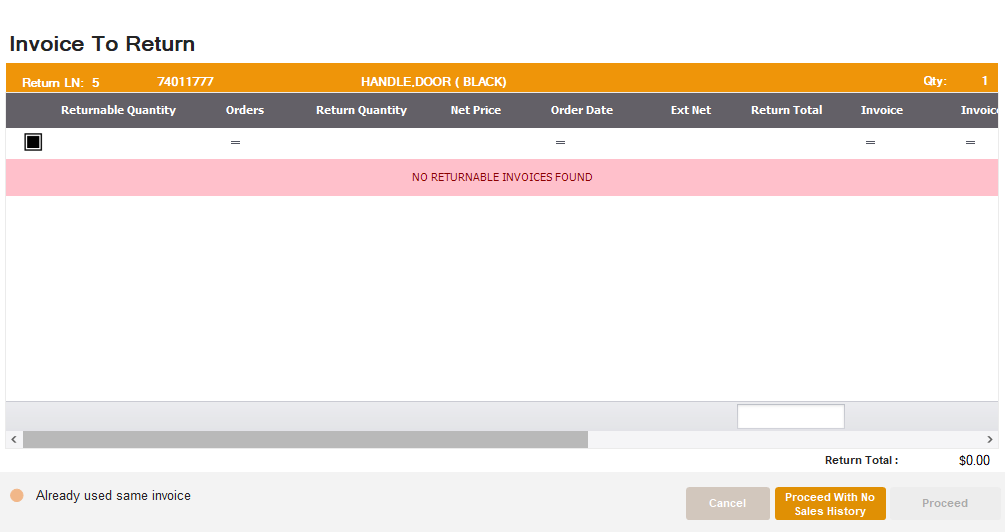
- Keep in mind, you can skip the Invoice part, and just enter the negative line item to begin with.
-
Then click the Proceed with No Sales History Button if there is no history, or if you wish to bypass selecting an invoice.
-
The negative line items will remain on the order but the Return Invoice column will be blank.
-
Upon Converting, the Return Summary screen will show the line items
Different Tax Code
-
If you have the security object called "Different Tax Code On Return” (under Order Actions), it is possible to have one tax code on the order but return an invoice with a different tax code.
-
A confirmation window will appear to confirm if you want to proceed.
- A warning, hard stop message will appear if you do not have the security.
Different Job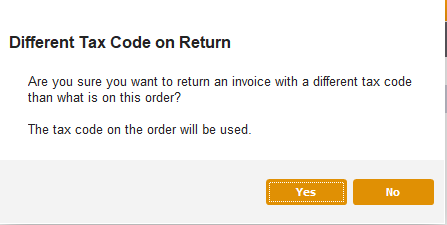
-
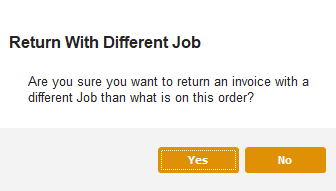
If you have the security object called "Different Job On Return” (under Order Actions) it is possible to have one Job on the order but return an invoice with a different Job.
-
A conformation window will appear to confirm if you want to proceed.
- A warning, hard stop message will appear if you do not have the security.
- A warning, hard stop message will appear if you do not have the security.
Over Refunding
- It is possible to override the refund to a greater amount in the REfund screen, but you must have the Security Object “Over Refund”, under Order Actions.
Return Request/RMA
-
The function to create a new return off of an order by clicking “Return Order/ Item” in the History tab of the order will still remain.

-
The functionality and workflow of this button will remain the same.
-
The items and qty will be added to a new Return and can be processed like normal.
-
-
You can also create a standalone RMA and use the same methods described above, using the Invoices to Return screen.
-
The main difference is that items added to a Return Request/RMA will be positive (like normal), there is just a new method to add invoices to a return, and you can add multiple invoices to the same RMA.